Nerd Free AI beaver mascot

Nerd Free AI

AI news and how-tos, minus the jargon

Author: Nerd Free AI Team

  • AI Helped Find a Huge Hole in the Code Behind Most Websites. Here’s What It Means for You

    AI Helped Find a Huge Hole in the Code Behind Most Websites. Here’s What It Means for You

    The short version: On Wednesday, October 21, 2026, the people who maintain PHP, the behind-the-scenes code that runs roughly 7 out of 10 websites, rushed out fixes for two very serious security holes. The bugs, nicknamed PHP2Shell, were found with help from AI. Within hours, websites around the world, from DeviantArt to the Internet Archive to government sites, went offline for a while to patch up. The good news: most regular people don’t need to do anything. The people who need to act are website owners. Here’s what happened, in plain English.

    First, a quick vocabulary check

    • PHP is a programming language, a set of instructions computers understand. It quietly powers a huge share of the web, including WordPress, the tool behind millions of blogs and small business sites. You never see it. It works in the back room, like the kitchen of a restaurant.
    • A server is the computer, usually sitting in a big warehouse somewhere, that holds a website and sends it to your screen.
    • A vulnerability (or “security hole”) is a mistake in software that a bad guy could use to break in.
    • A patch is the fix. Think of it as the repair crew showing up with a new lock.
    • “Shell” is techie slang for full control of a computer. “PHP2Shell” means a hole in PHP that could let an attacker take over the server. That’s why everyone moved so fast.

    What actually happened

    Two flaws, with the official tracking numbers CVE-2026-109618 and CVE-2026-109619, were rated 9.2 out of 10 for severity. According to security company Tenable, every version of PHP going back to version 5.4 from 2012 is affected by at least one of them. In the worst case, an attacker could send a specially made request to a website and run their own commands on its server, without needing a password.

    The fixes came out on October 21 as PHP versions 8.5.12, 8.4.27, 8.3.36 and 8.2.35. The release was even moved up a day after the bug numbers leaked early. Older versions (PHP 8.1 and below) are past their official support dates, so they didn’t get an official update. Owners of those sites are basically being told: upgrade, or protect it some other way.

    Where AI comes in

    This is the part that makes it AI news. Two separate teams found the bugs, and both had AI helpers in the passenger seat:

    • A researcher at a security firm called Calif found them using an OpenAI model through an OpenAI program called “Patch the Planet,” which puts AI to work hunting for bugs in widely used software.
    • Cloud security company Wiz found both flaws on its own, using its AI security system along with AI models from Google and OpenAI. Wiz said building the full attack was “at the edge of what human researchers could practically achieve,” and called it “among the most severe vulnerabilities discovered” in software history.

    OpenAI called PHP2Shell “one of the most impactful security issues in recent memory.” It also warned that it expects the number of AI-found bugs to “increase sharply in the coming months.” Translation: AI is getting very good at spotting weak spots in code. That’s great when the good guys find them first, like they did here, and a little nerve-racking when you think about who else has these tools.

    Why websites went dark

    Government security agencies didn’t mince words. The U.S. Cybersecurity and Infrastructure Security Agency (CISA) told organizations to patch immediately, or take affected systems offline until they could. Similar warnings came from the NSA and the UK’s National Cyber Security Centre.

    So a lot of websites pulled the plug for a bit. Over the next day or so, outages or maintenance pages showed up at Wikimedia, DeviantArt, the Internet Archive, Pokémon Home, some BBC pages, and government websites in Finland, the Netherlands, and Scotland, according to the BBC and The Verge. A couple of older online games in Japan even announced they’d shut down for good rather than fix their aging code.

    Meanwhile, the bad guys got busy. Cloudflare, a company that sits in front of millions of websites to protect them, said attack attempts jumped from thousands to millions within hours of the news. Cloudflare turned on extra protection for all its customers, including free ones, to buy time. As of the latest reports, the PHP Foundation (the group that looks after PHP) said it didn’t know of any successful break-ins using these bugs, but security firms say attackers are actively trying.

    What this means for you

    • If you just use websites, you probably don’t need to do anything. This is a bug in the websites’ computers, not in your phone or laptop. There’s no app to update on your end.
    • If a site you like is down, give it time. A “down for maintenance” page this week likely means the owners are doing the responsible thing.
    • Watch for “please change your password” emails from real companies. If a site you use tells you it was affected, change that password, and change it anywhere else you used the same one. Go to the site yourself instead of clicking the email link.
    • Be extra careful with scary emails about this news. Scammers love a headline. Ignore messages that say “Your account was hacked by PHP2Shell, click here.” Not sure about a message? Here’s how to ask AI if a text or email is a scam.
    • If you own a website (a blog, a shop, a church or club site), ask your hosting company or web person one question: “Have you updated PHP for the PHP2Shell fixes from October 21?” Updating WordPress or your plugins does not fix this one. It has to be fixed on the server, which is usually your host’s job.
    • It’s a great week for a security tune-up. Our new 20-minute online security checkup with free AI walks you through the basics, step by step.

    Try this next

    Want to stay a step ahead of the bad guys? Learn how Android’s AI can flag scam texts and calls, or read why some websites are blocking AI agents.

    Common questions

    What is PHP2Shell?

    PHP2Shell is the nickname for two critical security flaws (CVE-2026-109618 and CVE-2026-109619) in PHP, the programming language that runs a large share of websites, including WordPress sites. In the worst case, they could let an attacker take control of a website’s server. Fixes were released on October 21, 2026.

    Do I need to do anything about PHP2Shell?

    Most people who just visit websites don’t need to do anything, because the flaw is on websites’ servers, not your devices. Do change your password if a company tells you it was affected, and watch out for scam emails that use the news. Website owners should ask their host if PHP has been updated.

    Will updating WordPress fix PHP2Shell?

    No. PHP2Shell is a flaw in PHP itself, which runs underneath WordPress on the server. Updating WordPress or plugins won’t fix it. Your hosting company or web developer needs to update PHP to a fixed version (8.5.12, 8.4.27, 8.3.36 or 8.2.35) or newer.

    How did AI help find the PHP flaws?

    Two teams found the bugs separately. A researcher at the security firm Calif used an OpenAI model through OpenAI’s Patch the Planet program, and the cloud security company Wiz used its own AI system along with Google and OpenAI models. Both reported the bugs privately so they could be fixed before details went public.

    Why were so many websites down this week?

    U.S. and UK security agencies told organizations to install the PHP fixes right away or take affected systems offline. Many sites, including DeviantArt, the Internet Archive and some government sites, went offline for a while to patch, while attackers began scanning the web for sites that hadn’t been fixed yet.

    Want tech that makes everyday life easier?

    We rounded up 27 unusual, well-reviewed gadgets that use AI to do something genuinely useful, explained in plain English.

    See our Tech Picks


    Sources

  • Do a 20-Minute Online Security Checkup With Free AI (No Tech Skills Needed)

    Do a 20-Minute Online Security Checkup With Free AI (No Tech Skills Needed)

    Quick question: when’s the last time you checked the locks on your online life? If the answer is “um, never?” you’re in good company. Most of us set up our email years ago with a password like Fluffy2009 and haven’t thought about it since.

    This week is a good nudge. October is Cybersecurity Awareness Month, and a giant security hole in the code behind many websites just made headlines (here’s our plain-English explainer on PHP2Shell). You can’t fix websites’ servers. But you can lock your own doors, and a free AI chatbot makes a surprisingly patient coach. It can give you step-by-step directions for your exact phone, explain confusing settings, and quiz you on scams, all without judging your Fluffy2009.

    We’ll follow the four basics that the U.S. Cybersecurity and Infrastructure Security Agency (CISA) recommends, plus one bonus check. Grab a coffee. This takes about 20 minutes.

    What you need

    • Your phone and/or computer.
    • A free AI chatbot. Any of these work: ChatGPT (chatgpt.com or the app), Google Gemini (gemini.google.com or the app), or Microsoft Copilot (copilot.microsoft.com or the app).
    • Access to your main email account (you’ll need to be able to log in).
    • A pen and paper, if you like checking things off.
    • About 20 minutes. You can also do one step a day.

    One golden rule before we start: the AI is your coach, not your safe. Never type a password, a login code, or your Social Security or bank account number into an AI chat. You’ll ask it how to do things, then do them yourself in your phone’s settings or on the real website.

    Step 1: Make a short list of the accounts that matter most

    You don’t have to protect 200 accounts today. Start with the ones that would hurt most if a stranger got in. The Federal Trade Commission (FTC) suggests starting with your email, bank, credit cards, social media, tax website and payment apps. Your email comes first, because it’s the master key: whoever controls it can reset the passwords to almost everything else.

    Ask the AI to help you build your list:

    I want to do a basic online security checkup. Help me make a list of my most important online accounts to protect first. Ask me a few simple questions, one at a time, about what I use (email, banking, shopping, social media, phone carrier, etc.). Don't ask for any passwords or account numbers. At the end, give me a short checklist ranked from most to least important.

    Write the list down. You’ll use it for the next steps.

    Step 2: Turn on automatic updates

    Updates aren’t just new emoji. They often patch security holes, kind of like this week’s website fixes, but for your own devices. CISA’s advice is simple: turn on automatic updates so you never have to remember.

    Ask the AI for directions that match your exact device:

    I have a [your phone, like "iPhone 13" or "Samsung Galaxy A54"] and a [your computer, like "Windows 11 laptop" or "MacBook"]. Give me simple, step-by-step directions to turn on automatic updates for the phone's system software, my apps, my computer, and my web browser. Use short numbered steps and tell me what each button is called.

    Settings menus change from time to time, so if a button isn’t where the AI says, tell it what you do see. Something like “I don’t see that, I see General and Privacy” usually gets you back on track.

    Step 3: See if your email showed up in a data breach

    A data breach is when a company gets hacked and customer info leaks out. It happens a lot, and it’s usually not your fault. A free, well-known website called Have I Been Pwned (haveibeenpwned.com; “pwned” is gamer slang for “owned” or beaten) lets you type in your email address and see which known breaches it showed up in.

    1. Go to haveibeenpwned.com (type it yourself; don’t click random links).
    2. Enter your email address. Not your password. It never asks for that.
    3. Look at the list of breaches, if any. Each one shows which company it was and what kind of info leaked, like emails, passwords or phone numbers.

    Got hits? Don’t panic. Copy just the company names and the kind of info that leaked into your AI chat and ask:

    My email showed up in these data breaches: [paste the company names and what leaked, NOT your email or passwords]. In plain English, what should I do for each one? Put the most urgent actions first.

    Usually the answer is: change that password, and change it anywhere else you used the same one. Keep in mind that a clean result doesn’t guarantee you’re safe. It just means your email isn’t in the breaches that site knows about. The FTC’s IdentityTheft.gov data breach page has official next steps if Social Security or card numbers were involved.

    Step 4: Fix weak and reused passwords

    Here’s the big one. If you use the same password in several places, one breach unlocks them all. CISA recommends passwords that are long (at least 16 characters), random and unique for every account. Nobody can remember 50 of those, and you shouldn’t try. That’s what a password manager is for: an app that creates strong passwords, remembers them, and fills them in for you. You just remember one strong master password.

    Free options are already sitting on many phones: Google Password Manager on Android and in Chrome, and the Passwords app on iPhones and Macs. There are also free stand-alone apps like Bitwarden. Ask the AI to help you pick and set one up:

    I'm not very techy. I use [iPhone / Android] and [Windows / Mac], and I mostly browse with [Chrome / Safari / Edge]. Explain in plain English what a password manager is, compare 2 or 3 free options that would work for me, and then walk me through setting up the one you recommend, one step at a time. Wait for me to say "done" before giving the next step.

    Then work down your list from Step 1, starting with email, and let the password manager create a new password for each account. For your one master password, a good trick is a passphrase: four or more random words strung together, like purple-taco-ladder-sunrise (but please don’t use that one, it’s on the internet now).

    Step 5: Turn on two-step login (two-factor authentication)

    Two-factor authentication (also called 2FA, two-step verification or multi-factor authentication) means logging in takes two things: your password plus something else, like a code on your phone. Even if a crook steals your password, they’re stuck at the second door. CISA calls it one of the best ways to protect your accounts.

    According to the FTC, there are a few kinds, from good to best:

    • A code by text message or email. Better than nothing, but crooks can sometimes steal texts by hijacking your phone number.
    • An authenticator app like Google Authenticator or Microsoft Authenticator, which makes a fresh code every 30 seconds or so. Stronger.
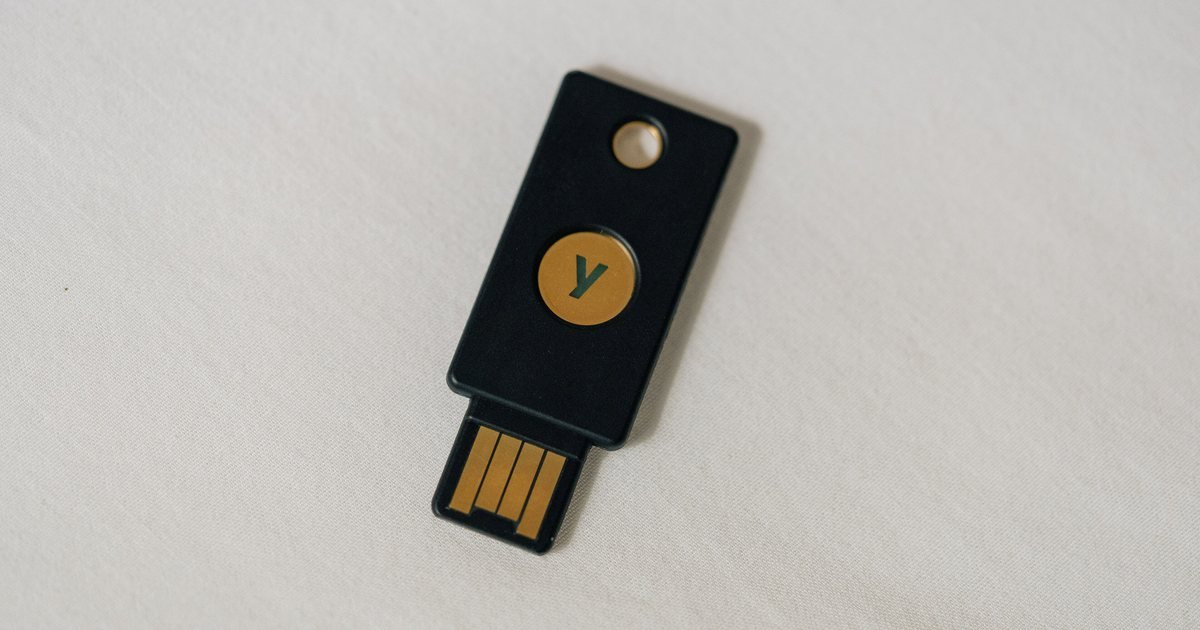
    • A security key, a small physical gadget (like the one in the photo above) that you plug in or tap. The strongest option.

    Look in each account’s settings for “Security,” then something like “two-step verification.” Or ask the AI:

    Walk me through turning on two-step verification for my [Gmail / Outlook / Yahoo / bank's name] account on my [phone / computer]. Explain my options in plain English, recommend the safest one that's still easy for a beginner, and tell me how to save backup codes in case I lose my phone.

    Do your email first, then the rest of your list. And remember the FTC’s big rule: never share a login code with anyone who contacts you, even if they say they’re from your bank. Real companies won’t ask for it.

    Step 6: Practice spotting phishing

    Phishing is when crooks send fake emails or texts that look real, hoping you’ll click a link or hand over info. CISA’s fourth basic is to learn the signs and report them. Scammers are already using big news, like this week’s website security mess, as bait. Make the AI your sparring partner:

    Quiz me on spotting scam emails and texts. Show me one realistic example at a time (some fake, some real), and let me guess whether it's a scam. After each guess, explain the clues I should have noticed. Do 5 rounds, then give me a short list of the top warning signs to remember.

    Got a suspicious message in real life? Here’s how to ask AI if a text or email is a scam. You can report scams to the FTC at ReportFraud.ftc.gov, and forward scam texts to 7726 (that spells SPAM).

    Safety tips

    • Never paste passwords, login codes, or bank or Social Security numbers into an AI chat. Ask how, then do it yourself.
    • Type website addresses yourself instead of clicking links in emails or texts, especially for banking and password changes.
    • Double-check the AI’s directions. Menus change and AI can be wrong. If a step doesn’t match your screen, stop and ask again, or check the company’s own help page.
    • Save your backup codes when you turn on two-step login. Print them or keep them in your password manager, so losing your phone doesn’t lock you out.
    • Nobody legit will ask for your login code. If someone calls or texts asking for one, hang up. It’s a scam.
    • Only let your own devices “remember” you. Skip that box on shared or library computers.

    Try this next

    Keep the momentum going: learn how Android’s AI flags scam calls and texts, or use AI to explain a confusing letter or bill in plain English, handy if a “data breach notice” ever shows up in your mailbox.

    Common questions

    Is it safe to use AI to help with my online security?

    Yes, as long as you use it as a coach and not a storage place. Ask a free AI chatbot like ChatGPT, Gemini or Copilot how to change settings or spot scams, but never type your passwords, login codes, or bank or Social Security numbers into the chat.

    What is two-factor authentication and should I use it?

    Two-factor authentication means you need your password plus a second thing, like a code from your phone or a security key, to log in. The FTC and CISA both recommend it. Turn it on for your email first, then banking, shopping, social media and payment apps.

    How do I know if my email was in a data breach?

    Type your email address (never your password) into the free website Have I Been Pwned at haveibeenpwned.com. It shows which known breaches included your email. If it finds any, change the password for that account and anywhere else you reused it.

    How long should my password be?

    CISA recommends passwords that are at least 16 characters long, random and different for every account. A password manager can create and remember them for you, so you only need to memorize one strong master password, such as a phrase made of four or more random words.

    How long does an online security checkup take?

    About 20 minutes for the basics: turn on automatic updates, check your email for breaches, start using a password manager, turn on two-step login for your email, and practice spotting phishing. You can also do one step a day.

    Want gadgets that make everyday life easier?

    We rounded up 27 unusual, well-reviewed gadgets that use AI to do something genuinely useful, explained in plain English.

    See our Tech Picks


    Sources

  • Walmart Will Let AI Assistants Shop for You, with Spending Limits You Set. Here’s How It Works.

    Walmart Will Let AI Assistants Shop for You, with Spending Limits You Set. Here’s How It Works.

    The short version: On Wednesday, October 21, 2026, Walmart announced new tools that let AI assistants shop at Walmart and Sam’s Club for you, with rules to keep you in charge. The big one for regular shoppers is called Agent Profiles, coming within the next month. It gives each AI helper you use its own spot in your Walmart account, so you can see exactly what it bought, require your OK before every purchase, or set a spending limit like $50 or $100. Walmart also says its normal returns process applies even if the AI messes up. Here’s what’s new, why it matters, and what to think about before you let a robot fill your cart.

    First, what is an “AI agent”?

    An AI agent is an AI helper that doesn’t just answer questions. It actually does things for you, like searching a store, putting items in a cart, and checking out. You might tell one, “Reorder my usual paper towels and dog food,” and it goes off and handles it.

    Walmart already works with several of these. The company says it connects with AI apps including ChatGPT, Google’s Gemini, and Meta’s Muse, plus its own shopping assistant, Sparky. The new tools are about making that kind of shopping safer and easier to keep an eye on.

    The problem Walmart says it’s fixing

    Right now, when an AI agent shops for you, it signs in as you. According to Walmart, that means everything lands in one big pile. Your purchases and the AI’s purchases look exactly the same, so if something odd shows up, it’s hard to tell who ordered it. (Was it you at midnight, or the robot? Honestly, both are plausible.)

    What’s new: three pieces

    1. Agent Profiles (for shoppers)

    Walmart says Agent Profiles will launch “in the next month.” Here’s how they work, based on Walmart’s announcement:

    • Each AI helper gets its own profile inside your Walmart account. Its orders show up separately from yours.
    • You choose how purchases get approved. You can require your OK for every single purchase, or let the agent buy things on its own up to a spending limit you pick. Walmart gives $50, $100, or $200 as examples.
    • You can delete a profile anytime, which cuts that agent off.
    • No Walmart+ membership needed. TechCrunch reports agent shopping works for anyone with a Walmart account.

    Walmart compares it to adding someone as an authorized user on your credit card: they can buy things, you set the limit, and you can see what they spent.

    Getting started is meant to be simple. Walmart says the first time you use an AI agent to shop through its new system, a profile gets created for that agent automatically. You then sign in to your Walmart account to link it and set your limits.

    2. The Walmart Agent Gateway (behind the scenes)

    Today, AI agents shop by clicking around Walmart’s website like a person would, which Walmart says can be slow and error-prone. The Agent Gateway is a direct, behind-the-scenes connection built just for AI agents. It uses a standard called MCP, a common way for AI tools to plug into apps and stores. It’s starting as a test for companies and developers, so you won’t see it directly.

    One nice touch: Walmart says the gateway can help an agent find your “usuals,” like the brand of milk you always buy, without handing the agent your whole shopping history.

    3. Rules that AI agents must follow

    Walmart also published terms that agents have to play by. Among them:

    • You must approve agent purchases by default, and Walmart may ask for extra approval even when a purchase is under your limit.
    • Agents can’t do more than what you intended.
    • Agents never get your card number, and they can’t add or change your payment methods.
    • Agents only get the information needed for the task, and only what you allow.
    • Walmart’s returns process applies, including when an agent doesn’t do what you wanted.
    • Agents that break the rules get blocked from Walmart’s site.

    Walmart also says AI agents see the same prices a person would see on Walmart.com. In the company’s words, “We price products, not people.”

    Why this is a big deal right now

    Stores are split on AI shoppers. As we covered recently, some big websites are blocking AI agents. TechCrunch reports that Amazon, Walmart’s biggest rival, recently started blocking AI agents from making purchases for shoppers, and some travel and booking sites have locked agents out completely. Walmart is going the other way and rolling out the welcome mat, as long as the agents follow its rules.

    For you, that means where you shop may decide whether your AI assistant can help. If you’re curious about AI shopping help, Walmart is about to become one of the easier places to try it, with guardrails built in.

    What this means for you

    • You don’t have to do anything. Walmart says shopping with an agent “won’t be for everyone.” Your regular Walmart account works exactly the same if you never touch this.
    • If you try it, start with “approve every purchase.” Let the AI build the cart, and you press the final button. Once you trust it, you can switch to a small spending limit.
    • Keep the limit small. A $50 limit is a lot less scary than a $200 one if the AI misreads “two” as “twenty.”
    • Check the agent’s order list now and then. That’s the whole point of Agent Profiles: you can see exactly what it bought.
    • Know your exit. You can delete an Agent Profile anytime, and Walmart says returns still apply if the AI gets it wrong.
    • Remember the AI company sees things too. Walmart notes the AI app’s own privacy policy covers what you share with that app. Only connect agents from companies you trust.
    • Watch for fakes. Scammers love new features. Walmart says you link an agent by signing in to your Walmart account. Be wary of texts or emails with links asking you to “set up your Walmart AI shopper.” Go to the Walmart app or website yourself instead.

    The bottom line

    AI shopping helpers are coming whether we’re ready or not, and Walmart is betting that people will be more comfortable with them if there are clear limits, a separate receipt pile, and an easy undo button. That’s a sensible approach. Just remember the golden rule of any new shopping tech: start small, watch closely, and never let anything spend more than you’d be okay losing in a mix-up. Want to compare? Read how Google’s Universal Cart watches prices across stores.

    Common questions

    What are Walmart Agent Profiles?

    Agent Profiles give each AI shopping assistant you use its own profile inside your Walmart account. You can see its purchases separately from yours, require approval for every purchase or set a spending limit, and delete the profile anytime. Walmart says they launch within a month of its October 21, 2026 announcement.

    Can an AI agent see my credit card number at Walmart?

    No. Under Walmart’s new rules for AI agents, agents don’t receive your payment card information and can’t add or change your payment methods.

    What if an AI agent buys the wrong thing at Walmart?

    Walmart says its normal returns process applies, including when an agent doesn’t act as intended. By default, you also have to approve agent purchases before they go through.

    Do I need Walmart+ to use an AI shopping agent?

    No. TechCrunch reports that agent shopping support is available to anyone with a Walmart account, and a Walmart+ membership isn’t required.

    Curious about AI that helps in everyday life?

    We rounded up 27 unusual, well-reviewed gadgets that use AI to do something genuinely useful, explained in plain English.

    See our Tech Picks


    Sources

  • Lower Your Phone, Internet, or Cable Bill with Free AI (It Writes Your Script)

    Lower Your Phone, Internet, or Cable Bill with Free AI (It Writes Your Script)

    Pull out your phone, internet, or cable bill and look at the total. Now look at what you were paying a year ago. If your stomach just dropped a little, you’re not alone. Prices creep up, promo deals quietly expire, and that “$49.99 a month” somehow turns into $87 with fees.

    Here’s the secret: these companies often have better deals for customers who simply ask. A Consumer Reports survey of more than 34,000 members found that about 70 percent of people who tried to negotiate their cable TV, internet, or home phone bill got a lower price or some other perk. The hard part is knowing what to say. That’s where a free AI chatbot comes in. It can help you read your bill, figure out what you actually need, and write a friendly, confident script for the call. Think of it as a coach in your corner, minus the towel.

    What you need

    • Your most recent phone, internet, or cable bill (paper, PDF, or a screenshot from the company’s app).
    • A free AI chatbot. Any of these work: ChatGPT (chatgpt.com or the app), Google Gemini (gemini.google.com or the app), or Microsoft Copilot (copilot.microsoft.com or the app).
    • About 20 minutes to prepare, plus time for the call itself.
    • A pen and paper (or a notes app) to jot down names and offers during the call.

    Step 1: Black out your personal info, then share the bill

    Before you show the AI your bill, cover up anything private. Use a marker on paper, or the markup or crop tool on your phone for a screenshot. Hide:

    • Your account number and any PIN or security code.
    • Your full name, address, and phone number.
    • Any payment card or bank details.

    The AI only needs the plan name, the charges, and the fees. Then attach the photo or file using the + or paperclip button, and paste this prompt:

    I attached my monthly [phone / internet / cable] bill. I covered up my personal info.
    Please explain it in plain English, with no jargon:
    1. List every charge and fee, and what each one is for.
    2. Point out anything that looks like an extra I might not need, like equipment rental, device insurance, or add-on channels.
    3. Tell me if anything looks like a promotional price that's ending or has already ended.
    4. Tell me which charges are usually negotiable and which ones (like taxes) usually aren't.
    If you can't read part of the bill, say so instead of guessing.

    That last line matters. AI chatbots can sound sure of themselves even when they misread a number, so double-check anything important against the bill itself.

    Step 2: Figure out what you actually use

    Many of us pay for more than we need. Consumer Reports gives examples like paying for super-fast internet the kids used for gaming after they’ve moved out, or still paying for phone insurance on a phone that’s six years old. Ask the AI to help you size up your real needs:

    Help me figure out if I'm paying for more than I need. Ask me simple questions, one at a time, about how my household uses [internet / cell phone data / TV channels].
    For example: how many people, what we do online (email, video calls, streaming movies, gaming), and how many TV channels we actually watch.
    When you're done, tell me in plain English what level of plan would probably be enough, and which extras I could drop.

    For cell phones, check how much data you really use. Your carrier’s app or your phone’s settings usually show it. If you use far less than your plan allows, a smaller plan could save money.

    Step 3: Look up competitor prices (and use the “nutrition label”)

    You’ll get a better deal if you know what other companies charge. Consumer Reports says to check providers’ websites for current deals before you call, especially offers for new customers.

    Here’s a handy tool most people don’t know about: the FCC (the government agency that oversees phone and internet companies) requires internet providers to show a Broadband Consumer Label for each plan, a lot like the nutrition label on a cereal box. It lists the monthly price, how long any intro price lasts and what it jumps to afterward, monthly fees, and typical speeds. Look for it on providers’ websites where they sell plans.

    Once you’ve found two or three offers, ask the AI to compare:

    Here are the plans I found. Please compare them to what I pay now in a simple table.
    My current plan: [paste plan name, price, and fees from your bill]
    Option 1: [paste details]
    Option 2: [paste details]
    For each, show the monthly price now, the price after any promo ends, one-time fees, and contract length.
    Then tell me which offers I could mention on the phone to ask my current company for a better deal.

    AI chatbots can be out of date on prices, so always use the numbers you found on the companies’ own websites, not prices the AI “remembers.”

    Step 4: Have the AI write your call script

    Now for the fun part. Consumer Reports’ tips for these calls include: call on a weekday during business hours, ask for the retention department (the team whose job is to keep customers from leaving), ask open-ended questions, and don’t say yes to the first offer. Let’s bake all that into a script:

    Write me a short, friendly phone script to ask my [company] for a lower bill.
    Facts to use:
    - I've been a customer for [number] years.
    - I currently pay [amount] per month.
    - Competitor offers I found: [list them].
    - Extras I want to drop: [list them, or "none"].
    - The most I want to pay: [amount].
    Please include:
    1. A polite opening that says I'm thinking about canceling, so I get transferred to the retention department.
    2. Open-ended questions like "What can you do to help me lower my bill?"
    3. What to say if their first offer isn't good enough.
    4. A reminder to ask how long any new price lasts, and to get it in writing.
    Keep it calm and polite. No threats, no rudeness, and nothing untrue.

    Only say you’re thinking about canceling if it’s true, meaning you really would switch for a better price. Honesty is the best policy, and it also means you won’t get caught off guard if they say, “Okay, I can cancel that for you.”

    Step 5: Practice the call with the AI

    Nervous about haggling? Most people are. Let the AI play the customer service rep so you can rehearse:

    Let's practice. You play a customer service rep at [company]. I'll be the customer asking for a lower bill.
    Start by giving me a small, not-very-good offer, like a real rep might.
    Push back a little, but be realistic.
    After a few back-and-forths, stop and give me 3 tips on how I could have done better.

    If your chatbot app has a voice mode, try it out loud. Saying the words a couple of times makes the real call much easier. (Bonus: the AI rep never puts you on hold to play elevator music.)

    Step 6: Make the call, then lock in the deal

    Call the customer service number on your bill, ideally on a weekday morning or early afternoon, when Consumer Reports says wait times tend to be shorter. Then:

    • Write down the rep’s name, the date, and every offer they make.
    • Ask how long the new price lasts and what it goes up to afterward.
    • Ask whether it requires a new contract or any equipment changes.
    • When you agree on a deal, ask them to send it to you in writing, such as an email. Consumer Reports recommends this so you have proof if the next bill is wrong.

    Afterward, paste your notes into the AI and ask it to set you up for next time:

    Here are my notes from my call: [paste notes].
    1. Summarize what I agreed to in 3 or 4 simple bullet points.
    2. Tell me what to check on my next bill to make sure the new price was applied.
    3. Write a short, polite email I can send if the next bill doesn't match what we agreed.

    Put a reminder in your phone for a month before the new deal ends. That’s your cue to do this all again, now as a seasoned pro.

    Safety tips

    • Keep private info out of the chat. Black out account numbers, PINs, your address, and payment details before sharing a bill with any AI.
    • Never give an AI your account password. You make the call and you agree to the changes, not the chatbot.
    • Only call the number on your bill or the company’s official website. Scammers sometimes post fake “customer service” numbers online, and real companies won’t ask you to pay with gift cards.
    • Double-check AI math and prices. AI can misread numbers or use outdated prices. Trust your bill and the company’s website.
    • Don’t cancel by accident. Before agreeing to anything, make sure you understand whether it changes your contract, your phone number, or your equipment.
    • Stay honest and polite. Reps can do more for customers who are friendly, and you never need to make anything up.

    Try this next

    Saved some money? Put it to work with our guide to making a simple monthly budget with free AI. If a company won’t fix a billing mistake, here’s how to write a polite complaint letter with AI. And if a text claiming to be from your phone company looks fishy, learn how to ask AI if a text is a scam.

    Common questions

    Can AI lower my phone or internet bill for me?

    Not by itself, but it can help a lot. A free chatbot like ChatGPT, Gemini, or Copilot can explain your bill, spot extras you may not need, compare competitor offers, and write a polite script for calling your provider. You still make the call and agree to any changes.

    Does asking for a lower internet or cable bill really work?

    Often, yes. In a Consumer Reports survey of more than 34,000 members, about 70 percent of people who tried to negotiate their cable TV, internet, or home phone bill got a lower price or another perk.

    What is the retention department?

    It’s the team at a phone, internet, or cable company whose job is to keep customers from leaving. Consumer Reports says these reps can often offer better deals than regular customer service, and you can reach them by saying you’re thinking about canceling or by asking for them directly.

    Is it safe to upload my bill to an AI chatbot?

    It can be, if you cover up your personal details first. Black out your account number, PIN, name, address, and any payment information. The AI only needs the plan name, charges, and fees to help.

    Want gadgets that make everyday life easier?

    We rounded up 27 unusual, well-reviewed gadgets that use AI to do something genuinely useful, explained in plain English.

    See our Tech Picks


    Sources

  • Gemini in Your Car Can Now Check Your Email, Calendar, and Photos for You

    Gemini in Your Car Can Now Check Your Email, Calendar, and Photos for You

    The short version: On Tuesday, October 20, 2026, Google started rolling out a feature called Personal Intelligence for Gemini, its AI assistant, on Android Auto. If you turn it on, you can ask things like “What’s my flight gate, and is my flight on time?” or “Take me to my doctor’s appointment,” and Gemini will dig through your own Gmail, Google Calendar, Google Photos, and Google Maps to find the answer. No scrolling through emails at a red light. It’s optional, you pick which apps it can see, and you can switch it off anytime. Here’s how it works, who gets it, and what to think about before you say yes.

    First, a quick vocabulary check

    • Gemini is Google’s AI assistant, the chatbot that’s replacing the older Google Assistant on Android phones. You talk to it like a person, and it talks back.
    • Android Auto puts your Android phone’s apps, like maps, music, and messages, on your car’s dashboard screen when you plug in or connect wirelessly. (It’s Google’s version of Apple CarPlay.)
    • Cars with Google built-in are newer models that have Google’s software installed right in the car, so they work even without a phone plugged in.
    • Personal Intelligence is Google’s name for letting Gemini look at your own information in other Google apps so its answers fit you, not just anybody.

    Google says Gemini itself is now available in cars worldwide on Android Auto and on cars with Google built-in. The new part is the personal touch.

    What you can ask it to do

    Google gave a handful of examples of the kind of thing Gemini can now handle with your permission:

    • Two questions at once. On the way to the airport: “What’s my flight gate? And is my flight on time?” Gemini finds the confirmation email and checks for delays in one go.
    • Drive to an appointment without the address. “Take me to my doctor’s appointment.” Gemini pulls the address from your calendar.
    • Find a place from a photo. “Find the car wash from the photo I took last week and navigate there.”
    • Pick up where you left off. “Take me to the coffee shop we were talking about yesterday.”
    • Suggestions that fit your habits. “Find me an indoor restaurant along my route that matches my usual vibe.” Google says if you’re vegetarian, the shortlist will reflect that, so you don’t have to say it every time.

    The apps Gemini can draw from are Google Workspace (which includes Gmail and Google Calendar), Google Photos, Google Maps, YouTube, and Search. In other words, it can now answer the question “Where am I supposed to be?” better than most of us can at 7 a.m.

    Who gets it, and when

    • Android Auto: rolling out starting October 20, 2026. Like most Google features, it arrives gradually, so it may take a while to show up for you.
    • Cars with Google built-in: “in the coming months,” according to Google. In those cars, personal answers only work when you’re in the car with your phone connected.
    • Who’s eligible: personal Google accounts for people 18 and older. Work and school accounts (Google Workspace business, enterprise, and education accounts) aren’t included yet.
    • Where: worldwide, except the European Economic Area, Switzerland, the United Kingdom, and Nigeria.

    It’s opt-in, with one catch

    Google says your apps aren’t connected until you choose to turn Personal Intelligence on. Here’s the catch that tech site 9to5Google pointed out: if you already turned it on in the Gemini app on your phone, it comes with you into the car automatically. So if you said yes to it months ago and forgot, your car may soon know about your dentist appointment, too.

    If you don’t use Personal Intelligence, Google says everything else still works. You can navigate, play music, make calls, and ask Gemini general questions. The answers just won’t be tailored to you.

    How to check or change your setting

    You control this from the Gemini app on your phone, not from the car screen. According to Google’s help pages:

    1. Open the Gemini app on your phone.
    2. Tap Menu, then your profile picture or initial.
    3. Tap Personal Intelligence, then Connected Apps.
    4. Turn individual apps (like Google Workspace, Google Photos, or YouTube) on or off.

    Two fine-print details worth knowing: Gemini can still use public information from Google Search and YouTube even if you disconnect those apps. And disconnecting an app doesn’t delete your past Gemini chats. Google’s help page says you can manage or delete your Gemini Apps activity separately, and turn off the setting that keeps your future chats for improving Google’s AI.

    What this means for you

    • It can genuinely keep your hands on the wheel. Asking out loud beats thumbing through emails at a stoplight. Anything that keeps your phone in its holder is a win.
    • Do your setup in the driveway. Turn it on (or off) and pick your apps while you’re parked, not on the highway.
    • Check whether it’s already on. If you’ve used Personal Intelligence in the Gemini app before, it may already carry over to your car. Take 30 seconds to look at your Connected Apps list.
    • Think about who else rides with you. Gemini answers out loud. If you share the car, or carpool with coworkers, a question about your calendar might get read to the whole car.
    • Double-check the important stuff. AI assistants can grab the wrong email or an old appointment. Before a flight, glance at the airline’s app or the airport screens once you’re parked.
    • Connect only what you need. If you just want calendar and maps help, you can leave Photos and YouTube off.

    Try this next

    Curious what other AI helpers are learning to do for you? Read about Yelp’s AI that calls restaurants to check the wait, and how Gemini picks how hard to think for free users. And if a warning light pops up on your dashboard during that drive, here’s how to figure out what it means with free AI.

    Common questions

    What is Gemini Personal Intelligence on Android Auto?

    It’s an optional feature, rolling out since October 20, 2026, that lets Google’s Gemini assistant use your own Gmail, Google Calendar, Google Photos, Google Maps, YouTube, and Search info to answer questions while you drive, like finding your flight gate or the address of your next appointment.

    Is Personal Intelligence turned on automatically in my car?

    No, it’s opt-in. But Google says if you already turned it on in the Gemini app on your phone, that choice carries over to Android Auto automatically. You can check in the Gemini app under Personal Intelligence, then Connected Apps.

    How do I turn off Personal Intelligence for Gemini?

    In the Gemini phone app, tap Menu, then your profile picture or initial, then Personal Intelligence, then Connected Apps, and switch off the apps you don’t want Gemini to use. Everything else in the car keeps working without it.

    Who can use Gemini Personal Intelligence in the car?

    It’s rolling out to personal Google accounts for adults 18 and older, starting on Android Auto, with cars that have Google built-in coming in the next few months. It’s not available yet for work or school accounts, or in the European Economic Area, Switzerland, the UK, or Nigeria.

    Want tech that makes everyday life easier?

    We rounded up 27 unusual, well-reviewed gadgets that use AI to do something genuinely useful, explained in plain English.

    See our Tech Picks


    Sources

  • What Does That Dashboard Light Mean? Ask Free AI (the Safe Way)

    What Does That Dashboard Light Mean? Ask Free AI (the Safe Way)

    You’re driving along, minding your own business, and a little orange squiggle lights up on the dashboard. Is it the engine? The tires? Is the car about to explode, or does it just want a hug? Most of us have no idea what half those symbols mean, and the owner’s manual is buried in the glove box under 14 napkins.

    Good news: a free AI chatbot can look at a photo of the light and explain it in plain English, tell you how urgent it probably is, and help you get ready to talk to a mechanic. It’s not a mechanic, and it can’t see inside your engine. But it’s a great translator. And with cold mornings arriving this time of year, a few of these lights (we’re looking at you, tire pressure light) are about to show up a lot more.

    What you need

    • A smartphone with a camera.
    • A free AI chatbot that can look at photos. Any of these work: Google Gemini (gemini.google.com or the Gemini app), ChatGPT (chatgpt.com or the app), or Microsoft Copilot (copilot.microsoft.com or the app).
    • Your car’s year, make, and model (for example, “2017 Honda CR-V”). It’s on your registration or insurance card if you’re not sure.
    • Your owner’s manual, paper or online. Many carmakers post them free on their websites.
    • About 10 minutes, and a safe place to park.

    Step 1: Check the color and get parked

    Before you touch your phone, look at the light’s color. AAA explains it like a traffic light:

    • Green or blue: just information. Something is turned on, like your headlights or cruise control. Nothing is wrong.
    • Yellow or orange: a warning. Something needs attention soon. Usually you can still drive a short distance, or the fix is simple, like closing a door or getting gas.
    • Red: serious. AAA says to pull over as soon as it’s safe and deal with it. If the car needs a professional, call for a tow instead of driving it to the shop.

    One more thing to notice: is the light steady or flashing? According to AAA, a flashing check engine light usually means the engine is misfiring, which can quickly cause expensive damage. If it’s flashing, or the car is shaking, losing power, smoking, or smells strange, pull over when it’s safe and turn off the engine.

    Then, and only then, pick up your phone. Every step below is for when you’re parked.

    Step 2: Take a clear photo of the light

    With the car parked and the engine running (or the key turned to “on”), take a photo of the dashboard. A few tips for a good shot:

    • Get close enough that the symbol fills a good part of the picture.
    • Turn off the flash. It bounces off the glass and hides the light.
    • If several lights are on, get them all in one photo. Sometimes they’re related.
    • Note any message on the screen, like “Check tire pressure” or a wrench symbol.

    Step 3: Ask the AI what the light means

    Open your AI app, tap the + or camera/paperclip button to attach your photo, and paste this prompt. Fill in the brackets:

    I attached a photo of my car's dashboard. A warning light just came on.
    My car is a [year, make, model, for example: 2017 Honda CR-V].
    The light is [steady / flashing] and it's [color].
    The car is driving [normally / strangely: describe any noises, shaking, smells, or loss of power].
    Please tell me, in plain English with no car jargon:
    1. What this symbol most likely means.
    2. How urgent it is: safe to drive normally, drive to a shop soon, or stop driving now.
    3. Simple things I can safely check myself.
    4. Where in my owner's manual I should look to confirm.
    If you're not sure what the symbol is, say so instead of guessing.

    That last line matters. AI chatbots sometimes sound very confident even when they’re wrong, so giving it permission to say “I’m not sure” gets you a more honest answer.

    iPhone shortcut: AAA notes that iPhones (iOS 17 and newer) can identify car symbols too. Open the photo in your Photos app, tap the info button, and look for Look Up Auto Symbol.

    Step 4: Double-check with your owner’s manual

    Your owner’s manual has a page that shows every dashboard symbol for your exact car. It’s the final word, because symbols can vary a little between carmakers. If you can’t find the paper one, ask the AI to help:

    Where can I find the free owner's manual for a [year, make, model] online?
    Which section usually covers dashboard warning lights?
    What words should I search for in the manual to find this symbol?

    Compare what the manual says with what the AI told you. If they disagree, trust the manual.

    Step 5: The cold-morning tire pressure light

    This one deserves its own step, because it’s about to get popular. The tire pressure light usually looks like a horseshoe with an exclamation point inside. Air shrinks when it gets cold. A General Motors service bulletin on file with the National Highway Traffic Safety Administration (NHTSA) gives the rule of thumb: tire pressure drops about 1 psi for every 10°F drop in temperature. So a chilly fall morning can trigger the light even if nothing is wrong with your tires.

    Don’t ignore it, though. Low tires are less safe and wear out faster. Ask the AI to walk you through it:

    My tire pressure warning light came on this morning. It's about [temperature]°F outside.
    Walk me through checking and filling my tires step by step, like I've never done it.
    Tell me where to find the right pressure for my [year, make, model], and explain why I shouldn't use the number printed on the tire itself.
    How can I tell the difference between cold weather and a slow leak?

    Here’s the quick answer to that middle question: NHTSA says to use the pressure listed on the sticker inside the driver’s door (or in your owner’s manual), not the maximum number molded into the side of the tire. Check pressure when the tires are “cold,” meaning the car has been sitting for a few hours.

    Step 6: Get the code read for free, then have AI explain it

    When the check engine light comes on, your car’s computer saves a trouble code, a short code like “P0455” that points to the problem. Many auto parts stores will read it for free. For example, AutoZone’s free Fix Finder service reads check engine light codes, usually in under a minute, and gives you a printed report. Once you have the code, ask the AI to translate:

    My [year, make, model] has check engine code [code, for example: P0455].
    1. Explain what this code means in plain English.
    2. List the most common causes, from cheapest and simplest to most expensive.
    3. Is it safe to keep driving for now, and what symptoms would mean I should stop?
    4. Write 4 or 5 smart questions I can ask my mechanic so I understand the repair and don't get talked into work I don't need.

    Bring those questions to the shop. A good mechanic will be happy to answer them. A code tells you where to look, not always exactly what’s broken, so a hands-on check by a pro is still the real diagnosis. (Fun fact: one of the most common causes of a check engine light, according to AAA, is a loose gas cap. Always worth a twist.)

    Safety tips

    • Never use your phone while driving. Pull over somewhere safe, or wait until you’re parked, before taking photos or chatting with an AI.
    • Red or flashing means stop. If a light is red or the check engine light is flashing, or the car is smoking, overheating, shaking, or losing power, pull over when it’s safe, turn off the engine, and call roadside assistance.
    • The AI is a translator, not a mechanic. It can explain symbols and codes, but it can’t inspect your car. Confirm with your owner’s manual and a qualified mechanic before paying for repairs.
    • Don’t DIY what you’re not comfortable with. Opening a hot radiator cap, for example, can cause serious burns. When in doubt, let a pro handle it.
    • Keep personal info out of the chat. The AI doesn’t need your license plate, VIN, address, or insurance details to explain a dashboard light.
    • Watch for recall notices. You can check whether your car has an open safety recall for free at nhtsa.gov/recalls. Recall repairs are done free at the dealer.

    Try this next

    Got a confusing repair estimate or bill afterward? Here’s how to have free AI explain a confusing letter or bill in plain English. And if the shop gives you a runaround, our guide to writing a complaint letter with AI can help. Plus, see what Google’s Gemini can now do in your car.

    Common questions

    Can AI tell me what my dashboard warning light means?

    Yes. Free AI chatbots like Google Gemini, ChatGPT, and Microsoft Copilot can look at a photo of your dashboard and explain the symbol in plain English, plus how urgent it probably is. Always confirm with your owner’s manual, and have a mechanic check anything serious.

    What do the colors of dashboard lights mean?

    According to AAA, green or blue lights just mean a feature is on, yellow or orange lights mean something needs attention soon, and red lights are serious warnings that mean you should pull over safely and deal with the problem.

    Is it safe to drive with the check engine light on?

    AAA says a steady check engine light usually means you can drive short distances if the car feels normal, but get it checked soon. If the light is flashing, or the car is shaking, losing power, smoking, or smells strange, pull over when it’s safe and turn off the engine.

    Why does my tire pressure light come on when it’s cold?

    Cold air shrinks. As a rule of thumb, tire pressure drops about 1 psi for every 10°F drop in temperature, so a cold morning can set off the light. Check and fill your tires to the pressure on the sticker inside the driver’s door.

    Want gadgets that make everyday life easier?

    We rounded up 27 unusual, well-reviewed gadgets that use AI to do something genuinely useful, explained in plain English.

    See our Tech Picks


    Sources

  • Yelp’s New AI Will Call a Restaurant and Ask About the Wait for You

    Yelp’s New AI Will Call a Restaurant and Ask About the Wait for You

    The short version: On Tuesday, October 20, 2026, Yelp announced more than 30 new features in its fall update. The one most people will notice is called Check for Me. You tap a button in the Yelp app, and an AI voice phones the restaurant for you, asks how long the wait is, and texts you the answer within minutes. No calling, no being put on hold, no shouting your party size over a noisy dining room. It’s coming to iPhones in the U.S. first and will roll out “in the coming months,” so don’t panic if you don’t see it yet. Here’s how it works, what else changed in Yelp, and what to keep in mind.

    How Check for Me works

    Yelp says the whole thing takes just a few taps:

    1. Open a restaurant’s page in the Yelp app (or ask Yelp Assistant, the app’s built-in AI chatbot, about a restaurant).
    2. Tap Check wait time now.
    3. Type in how many people are in your group and your phone number.
    4. Yelp’s AI phone agent calls the restaurant and asks about the current wait.
    5. You get a text message with the answer, usually within a few minutes, according to Yelp.

    There are a few limits. The button only shows up at “eligible” restaurants where walk-ins are possible, so places that only take reservations won’t have it. It’s starting on iPhone in the United States. Yelp hasn’t said when Android phones will get it.

    What else is new in Yelp

    Check for Me is part of a bigger push to turn Yelp from a place to read reviews into an assistant that gets things done for you. Here are the changes most likely to matter to regular folks:

    • Book a table without leaving the chat. Yelp Assistant can now make reservations at tens of thousands of restaurants that use OpenTable, a popular booking service (on iPhone for now). You can also join a restaurant’s Yelp Waitlist from the chat and get an update when your table is ready.
    • Scheduled reminders. A new feature called Keep Me Posted lets you ask for things like “send me date night ideas every Wednesday” or “dog-friendly hikes once a month.” They arrive as phone notifications. You can change or turn them off in your Yelp settings, or just ask the assistant.
    • It remembers you. The assistant now uses your Yelp activity, including past chats and reviews you’ve written, to suggest things you might like. Yelp says it will soon use your searches and saved places too. Your recent chats are saved, with 30 days of history now and full history coming in the next few weeks.
    • It checks the weather. If rain is coming, it might steer you away from that patio-only spot.
    • My Lists. You can save places in a “Been Here” list and a “Want to Go” list, rank them, add notes, and share them with friends by text. Starting next month, Yelp will send weekly suggestions based on your lists.

    Yelp isn’t the only one making calls for you

    AI that phones businesses on your behalf is quickly becoming normal. TechCrunch points out that in the last few weeks, new personal assistant apps, including Meta’s Muse, have started calling businesses to handle customer support and book appointments. (We explained what Meta’s Muse does when it was announced.)

    Google has been doing a version of this for a while. Its Let Google Call feature, which launched in November 2025, phones nearby stores to check whether something is in stock and what it costs, then sends you a summary by text or email. Google’s help pages say its automated calls can also check restaurant wait times and book some appointments. Those calls are available in every U.S. state except Indiana, Louisiana, Minnesota, Montana, and Nebraska, and Google has said its caller tells the business it’s an automated system.

    The catch: robots calling robots

    Here’s the funny part. More and more restaurants are using AI to answer their phones, too. Yelp itself started selling an AI phone answering service to restaurants and other businesses last year. So your AI might end up chatting with the restaurant’s AI. TechCrunch notes that this kind of robot-to-robot conversation could break down. Picture two very polite answering machines saying “Sorry, I didn’t catch that” to each other until the end of time.

    And people still want people. A survey released the same day by the phone company Consumer Cellular found that 97% of its customers surveyed, all adults 50 and older, agreed there should always be an option to speak with a human. An AI that saves you a phone call is handy. An AI that stands between you and a real person when something goes wrong is a lot less fun.

    What this means for you

    • Don’t worry if you don’t see it yet. Check for Me is rolling out slowly, starts on iPhone, and only appears at restaurants that take walk-ins. Keep your Yelp app updated.
    • A wait time is a snapshot. “Twenty minutes” can turn into forty if a big group walks in right before you. Use the answer to decide where to go, not as a promise.
    • Call yourself for anything important. Food allergies, a wheelchair-accessible table, a big birthday group, or a special request are worth a quick conversation with a real person.
    • You’re giving Yelp your phone number. That’s how the answer gets texted to you. Only share it if you’re comfortable with that.
    • Know what the assistant remembers. Yelp’s assistant now uses your past chats and reviews to personalize suggestions. If that feels like too much, keep personal details out of your chats.
    • Watch for copycat scams. As AI calls and texts become common, scammers will copy them. If a text claiming to be from a restaurant or app asks you to pay, share a code, or tap a strange link, don’t. Open the app yourself instead.

    Try this next

    Curious how far these AI helpers can go? Read about why big websites are blocking AI agents, and how Google’s new Universal Cart watches prices for you. And if a text about your “reservation” looks fishy, here’s how to ask a free AI whether a text is a scam.

    Common questions

    What is Yelp’s Check for Me?

    Check for Me is a new Yelp feature, announced October 20, 2026, that uses an AI phone agent to call a restaurant for you and ask about the current wait. You tap Check wait time now, enter your party size and phone number, and Yelp texts you the answer, usually within minutes.

    When can I use Check for Me?

    Yelp says it is rolling out in the coming months in the U.S. on iPhone, at eligible restaurants where walk-ins are possible. Yelp hasn’t announced a date for Android phones.

    Can Yelp book a restaurant table for me?

    Yes. Yelp Assistant, the app’s AI chatbot, can now book tables at tens of thousands of restaurants that use OpenTable (on iPhone for now), and you can join a restaurant’s Yelp Waitlist right from the chat.

    Can Google call restaurants for me too?

    Yes, in many places. Google’s automated calling can check restaurant wait times, book some appointments, and check whether nearby stores have an item in stock. Google says it’s available in every U.S. state except Indiana, Louisiana, Minnesota, Montana, and Nebraska.

    Want tech that saves you time?

    We rounded up 27 unusual, well-reviewed gadgets that use AI to do something genuinely useful, explained in plain English.

    See our Tech Picks


    Sources

  • Plan Thanksgiving Dinner Without the Stress, with Free AI

    Plan Thanksgiving Dinner Without the Stress, with Free AI

    Thanksgiving is Thursday, November 26, about five weeks away. If you’re hosting, you already know the drill: a long guest list, a few picky eaters, one oven, and a 16-pound bird that somehow has to be thawed, cooked, and carved before the football game ends. According to a survey from Butterball, most Thanksgiving gatherings this year are expected to have about 10 people. That’s a lot of plates.

    A free AI chatbot won’t baste the turkey for you (sadly), but it’s a great planning partner. It can build a menu around everyone’s needs, turn it into a shopping list, write a day-by-day countdown, and even draft the group text asking Aunt Linda to bring her famous rolls. You make the decisions. The AI does the list-making. Just double-check anything about food safety with the official sources we link below.

    What you need

    • A phone, tablet, or computer with internet.
    • A free AI chatbot. Any of these work: ChatGPT (chatgpt.com), Google Gemini (gemini.google.com), or Microsoft Copilot (copilot.microsoft.com). Each also has a free phone app.
    • A rough guest count and any food allergies or diets you know about (vegetarian, gluten-free, diabetic, and so on).
    • A sense of your budget and your kitchen: how many ovens, burners, and slow cookers you have.
    • About 20 to 30 minutes for the planning, plus a few minutes to print or save your lists.

    Step 1: Tell the AI about your gathering

    The more the AI knows up front, the better its plan will fit your real life. Copy this prompt and fill in the brackets:

    I'm hosting Thanksgiving dinner on Thursday, November 26.
    Here's my situation:
    - Number of guests: [for example: 10 adults and 3 kids]
    - Food allergies or diets: [for example: one vegetarian, one gluten-free, no nuts]
    - My kitchen: [for example: one oven, 4 burners, one slow cooker, small fridge]
    - My cooking skill: [beginner / comfortable / experienced]
    - Budget for food: [for example: about $150]
    - Dinner time: [for example: 3 p.m.]
    Please remember these details for the rest of our chat. Don't plan anything yet. Just ask me any questions you need answered first.

    Letting the AI ask questions first works like a good waiter taking your order. It might ask whether guests are bringing dishes, or whether you want a traditional menu or something simpler.

    Step 2: Build a menu that fits everyone

    Now ask for a menu. The trick is to ask for dishes you can make ahead, so you’re not cooking everything at the last minute:

    Suggest a Thanksgiving menu for my group.
    Include a main dish, 4 to 5 sides, a dessert, and drinks.
    Make sure there's at least one filling main option for the vegetarian and that every dish says whether it's gluten-free.
    Mark which dishes I can make 1 to 2 days ahead.
    Keep it realistic for my one oven. Point out any dishes that would fight for oven space and suggest stovetop or slow-cooker swaps.
    Keep the recipes simple. No fancy chef words.

    Don’t love a suggestion? Just say so: “Swap the green bean casserole for something without mushrooms” or “Make it cheaper.” Ask for full recipes one dish at a time when you’re ready to cook.

    Step 3: Figure out how much to buy

    This is where people overbuy (or worse, run out of turkey). The U.S. Department of Agriculture (USDA) suggests about 1 pound of whole turkey per person. Butterball suggests 1.5 to 2 pounds per guest if you want leftovers. So for 10 people, that’s roughly a 10-pound turkey for dinner only, or 15 to 20 pounds if you want sandwiches all weekend. Have the AI do the rest of the math:

    Make me a shopping list for this menu and my guest count.
    - Group items by store section (produce, meat, dairy, baking, canned goods, frozen).
    - Show amounts, like "5 pounds russet potatoes."
    - For the turkey, plan on about [1 / 1.5] pounds per person.
    - Here's what I already have at home: [for example: flour, sugar, butter, spices, chicken broth]. Leave those off.
    - Put a star next to anything that might be hard to find the week of Thanksgiving, so I can buy it early.

    AI is good at lists but can slip up on math. Glance at the amounts. If it says 12 pounds of potatoes for six people, ask it to double-check.

    Step 4: Make a thaw-and-cook countdown

    The most common turkey mistake is starting to thaw it too late. The USDA says to allow about 24 hours in the fridge for every 4 to 5 pounds of frozen turkey. A 16-pound bird needs 3 to 4 days, so for a Thursday dinner it should go into the fridge by Sunday, November 22. A 20-pound bird needs 4 to 5 days. Ask the AI to build your full timeline:

    Make a countdown plan from Saturday, November 21 through Thanksgiving dinner at [your dinner time].
    My turkey will weigh about [number] pounds and is [frozen / fresh].
    Include:
    - The day to move the turkey to the fridge to thaw, using the USDA guideline of 24 hours for every 4 to 5 pounds.
    - What to shop for, chop, or cook each day before Thursday.
    - An hour-by-hour plan for Thursday, including when the turkey goes in and comes out, and which dishes use the oven while the turkey rests.
    Put it in a simple checklist I can print.

    For timing, the USDA’s roasting chart says an unstuffed 14- to 18-pound turkey takes about 3¾ to 4¼ hours at 325°F. Those times are only a guide. The turkey is done when a food thermometer reads 165°F in the thickest part of the breast and the innermost parts of the thigh and wing. Let it rest about 20 minutes before carving, which conveniently frees up the oven for rolls and casseroles.

    Step 5: Share the jobs and send the group text

    Here’s a fun fact from that same Butterball survey: 85% of hosts would like guests to pitch in, but only 38% actually ask. Let the AI do the asking for you:

    Help me split up the work.
    Here are my guests and what they're good at: [for example: Mom bakes, my brother can bring drinks, my neighbor makes great mac and cheese].
    1. Suggest who should bring what from our menu, and what I should make myself.
    2. Write a short, warm group text inviting everyone, with the date, time, and my address as [ADDRESS], and asking each person to bring their dish.
    3. Include a polite line asking guests to tell me about any food allergies.
    Keep the message under 100 words and friendly, not bossy.

    Swap in your real address yourself before you send it. Don’t forget cleanup! Butterball found that’s when about half of hosts most want help. It’s perfectly fine to add “And I’d love a hand with dishes after!” to the text.

    Step 6: Plan the big day and the leftovers

    On Wednesday night, ask the AI for one last game plan:

    It's the night before Thanksgiving. Based on our plan, give me:
    1. A short list of everything I should finish tonight.
    2. A one-page Thursday checklist with times, in order.
    3. A list of serving dishes and utensils I'll need for each item, so I can set them out tonight with sticky notes.
    4. Three easy ideas for using leftover turkey on Friday.

    The sticky-note trick is a classic: put a note in each empty serving dish saying what goes in it. It makes it easy for helpers to jump in, and you’ll spot the missing gravy boat before it’s an emergency. For leftovers, the USDA says not to leave turkey, stuffing, or gravy at room temperature for more than 2 hours. Refrigerate them in shallow containers and eat them within 3 to 4 days, or freeze them.

    Safety tips

    • Check food safety with the experts, not the chatbot. AI can mix up times and temperatures. For thawing, cooking, and leftover rules, trust the USDA’s turkey guide over anything a chatbot says.
    • Use a food thermometer. The USDA says a whole turkey is safe at 165°F, checked in the thickest part of the breast and the innermost thigh and wing. Even if your turkey has a pop-up timer, double-check with a thermometer.
    • Thaw it the safe way. The USDA lists three safe ways to thaw a turkey: in the fridge, in cold water (about 30 minutes per pound, changing the water every 30 minutes), or in the microwave. The kitchen counter isn’t one of them.
    • Take allergies seriously. Ask guests directly, and read ingredient labels yourself. Don’t rely on an AI’s guess about whether a store-bought item contains nuts or gluten.
    • Keep private details out of the chat. The AI doesn’t need your home address, guests’ full names, or phone numbers. Add those yourself when you send the text.
    • Real humans are standing by. The USDA Meat and Poultry Hotline is 1-888-674-6854 (10 a.m. to 6 p.m. Eastern, Monday through Friday). The Butterball Turkey Talk-Line, 1-800-288-8372, is open November 2 through December 24, or you can text 844-877-3456.

    Try this next

    Got a fridge full of leftovers? Here’s how to turn what’s in your fridge into cheap dinners with free AI. And if the holidays are stretching your wallet, try our guide to making a simple monthly budget with free AI.

    Common questions

    Can AI really help plan Thanksgiving dinner?

    Yes. A free AI chatbot like ChatGPT, Google Gemini, or Microsoft Copilot can build a menu around your guests’ diets, write a shopping list, make a cooking countdown, and draft a group text. Just double-check food safety details, like thawing and cooking temperatures, with the USDA.

    How much turkey do I need per person?

    The USDA suggests about 1 pound of whole turkey per person. Butterball suggests 1.5 to 2 pounds per guest if you want leftovers. For 10 people, that’s about a 10-pound turkey for dinner only, or 15 to 20 pounds with leftovers.

    When should I start thawing my turkey for Thanksgiving?

    The USDA says to allow about 24 hours in the refrigerator for every 4 to 5 pounds. A 16-pound turkey needs 3 to 4 days, so for Thanksgiving on Thursday, November 26, 2026, move it to the fridge by Sunday, November 22.

    What temperature should a turkey be cooked to?

    The USDA says a whole turkey is safe when a food thermometer reads at least 165°F in the thickest part of the breast and the innermost parts of the thigh and wing. Let it rest about 20 minutes before carving.

    Want gadgets that make hosting easier?

    We rounded up 27 unusual, well-reviewed gadgets that use AI to do something genuinely useful, explained in plain English.

    See our Tech Picks


    Sources

  • Write a Resume That Gets Noticed with Free AI (Even If It’s Been Years)

    Write a Resume That Gets Noticed with Free AI (Even If It’s Been Years)

    Writing a resume ranks right up there with doing your taxes and cleaning the gutters. Maybe you haven’t updated yours in ten years. Maybe you’ve never had one because you’ve always gotten jobs through people you know. Either way, staring at a blank page and trying to make “I stocked shelves and helped customers” sound impressive is no fun.

    A free AI chatbot can do the heavy lifting. It can interview you about your work history, turn your everyday duties into strong, clear sentences, put it all in a clean format, and even tweak it to match a specific job ad. You stay in charge of the facts. The AI just helps you say them well. Think of it as a patient friend who’s great with words and never gets tired of your questions.

    What you need

    • A phone, tablet, or computer with internet. A computer is easier for the last step, but a phone works.
    • A free AI chatbot. Any of these work: ChatGPT (chatgpt.com), Google Gemini (gemini.google.com), or Microsoft Copilot (copilot.microsoft.com). Each also has a free phone app.
    • Rough notes about your past jobs: company names, your job titles, about when you worked there, and what you did. Messy notes are totally fine.
    • Optional: your old resume, and a job ad you’d like to apply for.
    • A free word processor to save the final version, like Google Docs or Microsoft Word.
    • About 30 to 45 minutes.

    Step 1: Jot down the basics

    Before you open the chatbot, spend five minutes writing down what you remember. Don’t worry about fancy wording. Just get the facts on paper (or in your phone’s notes app). Here’s a simple list to fill in:

    Jobs (most recent first):
    - Job title, company, city, and about when (for example, 2019 to 2024)
    - What I did there, in my own words
    - Anything I'm proud of (trained new people, never missed a day, got a raise, handled the busy holiday rush)
    
    School and training:
    - High school or GED, any college, trade school, or certificates (like forklift, CPR, ServSafe, CDL)
    
    Other things that count:
    - Volunteer work, caring for a family member, side jobs, military service
    - Skills: languages, computer programs, machines or tools I can use

    Notice what’s not on that list: your Social Security number, birth date, or bank details. A resume never needs those. More on that in the safety tips.

    Step 2: Let the AI interview you

    This is the secret trick. Instead of trying to write everything yourself, let the chatbot ask you questions, one at a time, like a friendly interviewer. Copy this prompt and fill in the brackets:

    I want to write a resume for jobs as a [kind of job, for example: warehouse supervisor / medical receptionist / retail manager].
    Please interview me to gather what you need.
    Ask me one question at a time and wait for my answer before asking the next one.
    Start with my most recent job.
    Ask about what I did, what I was good at, and any numbers I remember (like how many people, customers, or orders).
    Keep your questions simple. When you have enough, tell me you're ready to write the resume.

    Answer the way you’d talk to a friend. Short, plain answers are fine. If you don’t remember an exact number, say “about” or “I’m not sure.” Never guess just to make it sound bigger.

    Step 3: Turn your duties into accomplishments

    Hiring managers skim fast. CareerOneStop, a job site from the U.S. Department of Labor, says a person typically looks at a resume for just 15 to 20 seconds. So each line should show what you got done, not just what your job title was. Ask the AI to help:

    Here's what I did at one of my jobs, in my own words:
    [paste or type your notes, for example: "ran the register, opened and closed the store, trained new hires, did the schedule when the manager was out"]
    
    Turn this into 3 to 5 short resume bullet points.
    Start each one with a strong action word (like "trained," "managed," or "handled").
    Use only the facts I gave you. Do not add anything I didn't say.
    If a number would help and I didn't give one, ask me instead of making one up.

    For example, “did the schedule when the manager was out” might become “Built weekly work schedules for a team of 8 when the store manager was away,” but only if you really told it there were 8 people.

    Step 4: Build the first draft

    Once the AI has your info, ask it to put the whole thing together. Some employers use software to sort resumes before a person ever sees them, and fancy layouts with tables, columns, or pictures can confuse it. So keep the design plain:

    Now write my full resume using everything I've told you.
    Use this order: my name and contact info, a 2-3 sentence summary, skills, work experience (most recent first), then education and training.
    Keep it to one page if you can, two at most.
    Use a simple layout with plain headings and bullet points. No tables, columns, or graphics.
    Write in plain, everyday language that sounds like a real person, not a robot.
    For contact info, use: [your name], [city, state], [phone], [email].

    If you have an old resume, you can paste it in instead and say: “Please update this resume using the new information I just gave you, and make it easier to read.”

    Step 5: Match it to a job you want

    This is where AI really earns its keep. CareerOneStop recommends using words from the job posting so the person reading can quickly see you’re qualified. Copy the text of a job ad and try this:

    Here's a job I want to apply for:
    [paste the job ad]
    
    Compare it to my resume. Then:
    1. Tell me which skills or experience from the ad my resume is missing or doesn't show clearly.
    2. Suggest changes that use the ad's key words, but only where they're true for me.
    3. Rewrite my summary so it fits this job.
    Ask me before adding any skill or experience you aren't sure I have.

    Save your main resume, then make a slightly adjusted copy for each job you apply to. It takes a few extra minutes, but a resume that clearly fits the job stands out.

    Step 6: Check it and make it sound like you

    AI can sound stiff or overly fancy. CareerOneStop warns that formal or unnatural language is a red flag, and that AI can write things that exaggerate your experience. So give it a careful read. You can also ask the AI to proofread:

    Please check my resume for:
    - Spelling, grammar, and punctuation mistakes
    - Dates that don't line up or look confusing
    - Fancy words or phrases a regular person wouldn't say (suggest plain ones)
    - Anything that sounds exaggerated
    List the problems first, then show me the fixed version.

    Then read it out loud. If a sentence doesn’t sound like something you’d say, change it. Better yet, ask a friend or family member to look it over. Your local American Job Center also gives free resume feedback.

    Step 7: Save it and send it

    Copy the finished resume into Google Docs or Microsoft Word, then fix any spacing or bullet points that got jumbled in the paste. Save it as a PDF or a Word file, depending on what the job ad asks for. If it doesn’t say, a PDF is a safe bet because it keeps your formatting looking the same on any computer.

    Give the file a clear name like Jane-Smith-Resume.pdf (with your own name, of course), not “resume final FINAL 2.pdf.” Want a cover letter too? Ask: “Write a short, friendly cover letter for this job using my resume. Keep it under 200 words and make it sound like me.”

    Safety tips

    • Only true information. Never let the AI add jobs, degrees, skills, or numbers you don’t really have. Getting caught in a fib can cost you the job, even after you’re hired.
    • Leave out private details. Your resume doesn’t need your Social Security number, birth date, or bank information, so don’t type them into the chatbot either. Your city and state are enough. You don’t need your full street address.
    • Watch out for job scams. The FTC warns that fake recruiters may ask for your Social Security or bank account number before you’ve even interviewed. Real employers won’t. And never pay anyone to get a job.
    • Be careful with private work info. Don’t paste in confidential details from a current or past employer, like customer names or company numbers that aren’t public.
    • Check your chatbot’s privacy settings. Most let you turn off chat history or keep your chats from being used for training. Look in the settings menu if you’d rather they didn’t keep your info.

    Try this next

    Landed an interview? Next, practice for the interview with free AI, where the chatbot plays the interviewer. And if your job search to-do list is getting long, here’s how to turn a messy brain dump into a clear to-do list.

    Common questions

    Is it okay to use AI to write my resume?

    Yes, as long as everything on it is true and it sounds like you. Even CareerOneStop, a job site from the U.S. Department of Labor, suggests prompts for using AI on your resume. Just edit the draft carefully before you send it.

    Will employers know I used AI?

    They might if your resume sounds stiff, generic, or too fancy. Answer the AI’s questions in your own words, ask it to use plain everyday language, and read the final version out loud. Change anything that doesn’t sound like you.

    Which free AI chatbot is best for a resume?

    ChatGPT, Google Gemini, and Microsoft Copilot all have free versions that can write and improve a resume. Pick whichever one you find easiest to use. The prompts in this guide work in all of them.

    Should my resume be one page or two?

    CareerOneStop recommends keeping it to one or two pages, with a clean, easy-to-read layout and plenty of white space. If you’re early in your career, one page is usually plenty.

    Want gadgets that make everyday life easier?

    We rounded up 27 unusual, well-reviewed gadgets that use AI to do something genuinely useful, explained in plain English.

    See our Tech Picks


    Sources

  • Google’s AI Search Mixed Up a Doctor with a Criminal. German Courts Say Google Is Responsible.

    Google’s AI Search Mixed Up a Doctor with a Criminal. German Courts Say Google Is Responsible.

    The short version: Google’s AI search told people that a respected German doctor had harassed his secretary, been fired, and been convicted in court. None of it was true. The AI had mixed him up with a different man. When Google refused to take it down, the doctor went to court, and on September 24, 2026, a court in Aachen, Germany, ordered Google to stop. It’s the second German court this year to say the same thing: when Google’s AI writes something, Google is responsible for it. The tech site The Decoder pulled the story together on Sunday, October 18. Here’s what happened, in plain English, and what it means for the AI answers you see every day.

    First, what are AI Overviews and AI Mode?

    When you search on Google these days, you often get a short AI-written answer at the top of the page, before the regular list of links. Google calls that an AI Overview. AI Mode is a newer option that works more like a chatbot: you ask a question and it writes you a longer answer, pulling from lots of websites at once.

    It’s handy. But the AI doesn’t copy one website word for word. It reads several, mixes the pieces together, and writes something brand new. Most of the time that works fine. Sometimes it stitches the wrong pieces together, like a friend who mixes up two people with the same haircut and tells a very confident story about the wrong one.

    What happened to the doctor

    The doctor had worked as a chief physician and professor at a German hospital from 2010 until late June 2026. On August 28, a colleague warned him about something strange. When people searched his name along with words like “suspension,” Google’s AI Mode said he had pushed himself on his secretary during a work trip and tried to kiss her, that he had been suspended and fired, that a court had given him a suspended sentence for sexual assault, and that he had walked away with a six-figure payout.

    Every bit of it was false. According to the German legal news site beck-aktuell, there was never a criminal complaint against him, no trial, and no conviction. The AI had apparently taken a real case involving a different former senior employee at the same hospital and pinned it on him. Even the news articles Google linked as its sources never named him.

    • He asked Google to fix it. In late August he emailed Google, explained the mix-up, and asked for the answers to be removed.
    • Google said no. In mid-September, Google replied that it had reviewed the complaint and would not take any action. A formal letter from his lawyers the same day didn’t change anything, and the false answers stayed up.
    • The court stepped in. On September 24, the Aachen Regional Court banned Google from spreading the three false versions of the story. Because the claims could badly hurt his career, the court acted as an emergency and didn’t wait to hear Google’s side first.
    • The price of ignoring it: If Google breaks the order, it faces a fine of up to 250,000 euros each time.

    This is a temporary emergency order, not a final ruling. Google can still challenge it.

    This isn’t the first time

    Back in late May 2026, a court in Munich ruled in a similar case. There, Google’s AI had falsely linked two Munich publishers to fraud schemes. The Munich judges said Google’s AI Overviews aren’t just a list of other people’s websites. They’re Google’s own statements, so Google has to answer for them.

    Google appealed that ruling, but according to The Decoder, the case quietly ended in a settlement before a higher court could weigh in. Nobody has said whether money changed hands. Now the Aachen court has used the very same reasoning, which suggests German courts are starting to agree on how to handle this.

    Why the courts said Google is responsible

    A search engine is usually seen as a go-between: it points you to what other people wrote. That’s a big reason search engines usually aren’t blamed for what’s on other websites.

    The German courts see AI answers differently. The Munich court said the AI makes “independent, new” statements by combining information from different websites. In other words, the AI isn’t pointing you to someone else’s words. It’s writing its own. And the Aachen judges said Google could have checked. They even noted that if Google had shown its own AI the doctor’s complaint, the AI would likely have figured out the claims were wrong.

    The doctor’s lawyer, Carsten Brennecke, put it bluntly (translated from German): “Whoever lets an AI make claims about people is liable for them. Google can’t hide behind an algorithm.”

    Does this affect people outside Germany?

    Not directly. These are German court decisions, and they only apply in Germany. Laws in other countries, including the United States, are different, and it isn’t clear yet how courts elsewhere will handle mistakes made by AI search.

    But the lesson travels well: AI search answers can sound completely sure of themselves and still be flat wrong, especially about real people. Google says so itself. Its own help page warns that AI Overviews “can and will make mistakes.”

    What this means for you

    • Treat AI answers about people as a first guess, not the truth. That goes double for anything about crimes, health, money, or someone’s job. AI is most likely to slip up when two people or businesses have similar names.
    • Click the sources. Under the AI answer, Google shows links to the websites it used. Open one or two and make sure they really say what the AI says. In the doctor’s case, the linked articles never even mentioned him.
    • Don’t make big decisions from a summary. Hiring a contractor, picking a doctor, or checking out a new date? Read the actual reviews, news stories, or official records, not just the AI’s short version.
    • Report wrong answers. At the bottom of an AI Overview, tap the thumbs-down icon, then Report a problem. You can also use the three-dot menu at the top of the overview. Google says this feedback helps it improve.
    • Look yourself up once in a while. Search your own name and your business’s name. If an AI answer says something false and harmful about you, report it, and for serious problems Google has a separate legal request form (search for “Report Content On Google”). It asks whether the problem is AI-made content. If it’s hurting your job or reputation, talking to a lawyer may be worth it.

    Try this next

    Want a second opinion you can trust a little more? Here’s how to ask a free AI chatbot whether a text is a scam, and the right way to double-check what it tells you. And if you use Google’s Gemini chatbot, here’s what its “Auto” setting means for free users.

    Common questions

    What happened with Google’s AI and the German doctor?

    Google’s AI Mode search falsely said a German doctor had harassed his secretary, been fired, and been convicted. It had mixed him up with a different man. Google refused to remove the answers, so on September 24, 2026, a court in Aachen ordered Google to stop spreading them, with fines of up to 250,000 euros per violation.

    Is Google responsible for what its AI search says?

    Two German courts, in Munich and Aachen, have said yes, because the AI writes new statements instead of just pointing to other websites. The Aachen order is temporary and not final, and these decisions only apply in Germany. Courts in other countries, including the U.S., haven’t settled the question.

    How do I report a wrong AI Overview on Google?

    At the bottom of the AI Overview, tap the thumbs-down icon, then choose Report a problem and pick the reason. You can also use the three-dot menu at the top of the overview. For legal problems, like false and damaging claims about you, Google has a separate legal removal request form.

    Can I trust Google’s AI Overviews?

    Use them as a quick starting point, not the final word. Google’s own help page says AI Overviews can and will make mistakes. For anything important, click the source links and check that they really say what the AI says.

    Want tech that’s genuinely helpful?

    We rounded up 27 unusual, well-reviewed gadgets that use AI to do something genuinely useful, explained in plain English.

    See our Tech Picks


    Sources